 Quincy Labs
After Browserbase, the next connector was Google Workspace.
This is where the setup starts crossing from "agent that can answer questions" into "agent that can help operate my actual work surface."
Gmail, Drive, Calendar, Docs, Sheets, Contacts, Chat, and adjacent Google APIs are not just external data sources. They are where work already lives. They hold meeting links, project docs, email threads, calendar commitments, spreadsheets, status reports, files, drafts, and the loose operational context that normally sits outside a coding agent.
That is exactly why Google access should be boring, explicit, and revocable.
I did not want to paste a personal cookie into an agent. I did not want a random browser session to become the source of truth. I wanted a proper OAuth client, a CLI I could test independently, and an MCP server I could expose to OpenClaw in read-only mode first.
The pattern became:
# ==================== TEXT CODE ====================
OAuth client -> tested CLI -> local MCP server -> OpenClaw config -> read-only agent tool
That order is the whole point.
Why Google Workspace changes the agent
Before Google Workspace, OpenClaw had channels, model routing, MCP tools, and a browser layer.
That made it reachable, flexible, extensible, and able to inspect web surfaces.
Google Workspace adds the operational layer:
• What is on my calendar?
• Which Drive files changed?
• Which docs are relevant to this project?
• What recent email thread explains this?
• Which contact or organization is connected to this work?
• Can the agent produce a status update grounded in actual workspace context?
That is a different class of usefulness.
It is not just "connect Gmail to a chatbot."
The better framing is:
# ==================== TEXT CODE ====================
OpenClaw becomes an ops assistant over the workspace surface.
It can sit in the same channel where a question arrives, inspect the relevant workspace system, and answer from the artifacts where work already happened.
Why I used a CLI and an MCP server
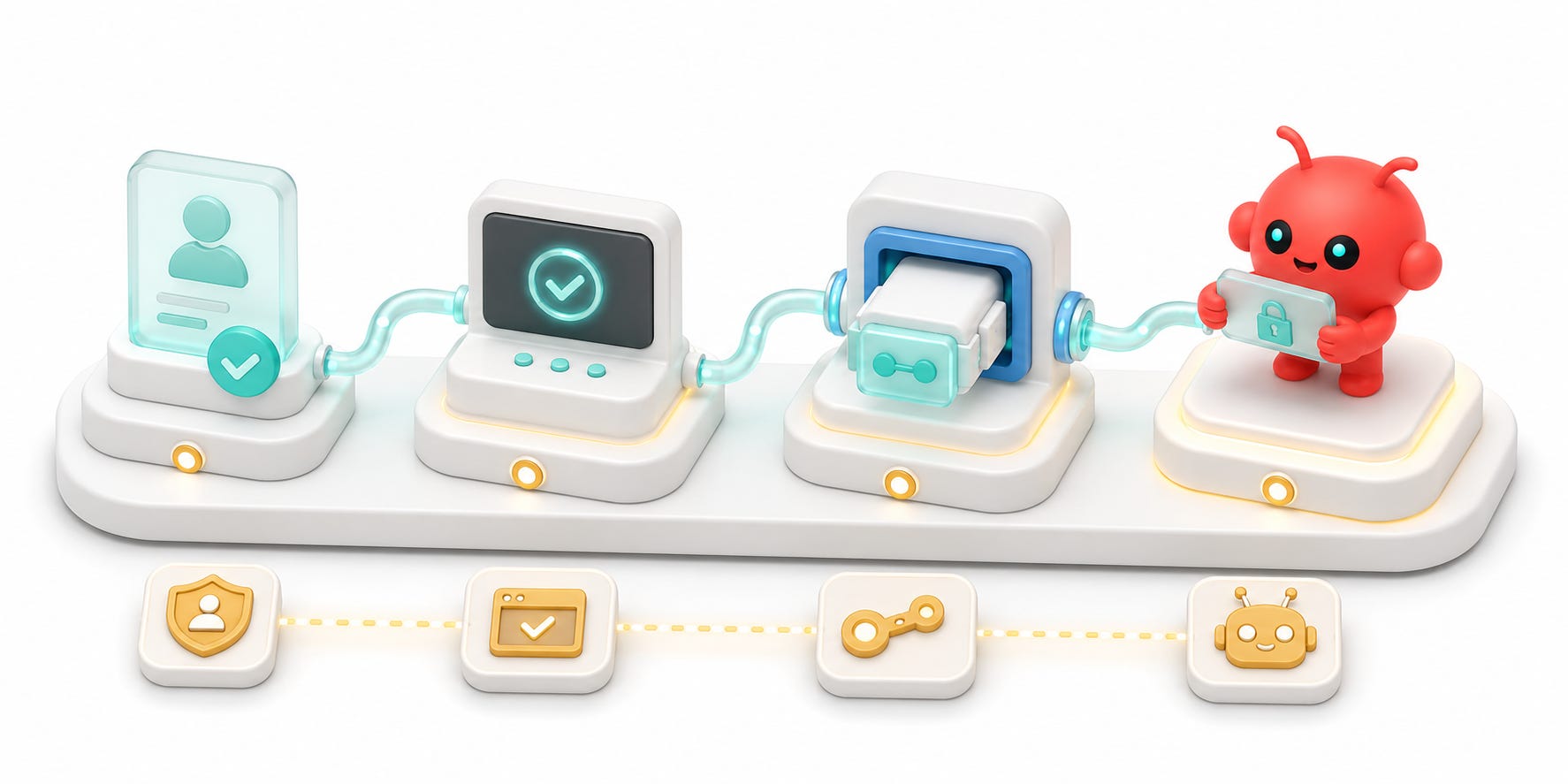
I wanted two layers:
# ==================== TEXT CODE ====================
gogcli -> reliable Google API access from the shell
google_workspace_mcp -> agent tools for MCP clients and OpenClaw
Those overlap, but they are not the same thing.
The CLI is the boring layer. It is useful when I want to verify auth, list Drive files, check Gmail labels, inspect Calendar state, or prove that a token can actually access the APIs I enabled.
The MCP server is the agent layer. It lets OpenClaw and other agent clients call Google Workspace tools during a model turn.
The distinction is:
# ==================== TEXT CODE ====================
CLI: I run a command.
MCP: the agent has a tool.
That distinction makes the setup debuggable.
If the CLI cannot list Drive files, the MCP server is not the first place to look. The problem is probably OAuth, scopes, API enablement, account selection, or token storage.
If the CLI works but the agent cannot use the tool, then the MCP config, environment variables, server command, or client reload path becomes the place to debug.
That separation saves hours.
The Google Cloud part
The Google setup starts in Google Cloud Console.
I used a separate project for local workspace tooling instead of mixing it into an unrelated app project. That separation matters. OAuth scopes for a local agent stack should not be tangled with a production app, a throwaway experiment, or another product's credentials.
The shape was:
1. Create or select a clean Google Cloud project.
2. Configure the OAuth consent screen.
3. Add my own Gmail account as a test user if the app is in testing mode.
4. Create an OAuth client appropriate for the local workflow.
5. Download the client JSON.
6. Enable the Google APIs needed for the workflow.
For the local path, the normal Google APIs were the important part: Gmail, Drive, Calendar, Docs, Sheets, and People/Contacts depending on the workflow.
Google now also has official Workspace MCP documentation. The official setup path calls out APIs such as Gmail, Drive, Calendar, Chat, and People, plus product-specific MCP services. That is a useful official direction, but it is separate from the local `gogcli` plus `google_workspace_mcp` path I was using.
The public lesson is:
# ==================== TEXT CODE ====================
Know which Google path you are setting up.
Do not mix official remote MCP assumptions with a local MCP server without checking the docs.
OAuth testing mode
Because the OAuth app was in testing mode, the first login can fail until the account is added as a test user.
That looks like the app has not completed Google's verification process. For a personal local tool, that is expected. I did not need to submit the app for public verification. I needed to add myself under the OAuth app's test users.
The rule is:
# ==================== TEXT CODE ====================
Testing app + personal use = add yourself as a test user.
Public app = verification process.
The public version of this setup should never include screenshots showing the real client ID, account email, consent screen details, OAuth callback URL, or downloaded secret filename.
The OAuth details are not the content. The architecture is.
Setting up the CLI
Once I had the OAuth client JSON, I stored it in the CLI.
The public command shape looks like:
# ==================== BASH CODE ====================
gog auth credentials set ~/Downloads/client_secret_REDACTED.json
Then I authorized the account with the services I wanted:
# ==================== BASH CODE ====================
gog auth add you@example.com \
  --services gmail,calendar,drive,docs,sheets,contacts \
  --readonly \
  --force-consent
The exact command can drift with CLI versions, so the public article should treat this as a shape, not a frozen copy-paste contract.
The important parts are:
• Use OAuth instead of browser cookies.
• Authorize only the services needed.
• Start read-only.
• Test the CLI before giving the agent access.
That makes the Google layer boring in the best way.
Token storage matters
The first version of the setup exposed a practical problem: OAuth can succeed while later service commands still fail because the token storage layer is unreliable for headless agent use.
On macOS, the normal keychain path can be awkward for agents and background processes. The fix in this setup was to use an encrypted file keyring backend with a fresh generated keyring password.
The public shape is:
# ==================== BASH CODE ====================
gog auth keyring file
export GOG_KEYRING_BACKEND=file
export GOG_KEYRING_PASSWORD=REDACTED
That password is a local secret.
It should be generated fresh, stored in a password manager, and never pasted into notes, screenshots, Slack, Substack, or example configs.
The point is not the exact backend. The point is that agents need a token storage path that works without surprise GUI prompts.
Verify the CLI before MCP
This was the most important debugging step.
Before wiring anything into OpenClaw, I made sure the CLI could actually read Google data:
# ==================== BASH CODE ====================
gog auth list --check
gog --account you@example.com drive ls --max=3
gog --account you@example.com gmail labels list
Those checks prove three things:
• The OAuth client is valid.
• The refresh token can be read.
• The selected Google APIs are reachable.
That gives a known-good base before adding the MCP server.
This is the pattern I want to keep using for agent tools:
# ==================== TEXT CODE ====================
Prove the underlying tool works first.
Then expose it to the agent.
When a stack has OAuth, scopes, local binaries, environment variables, MCP config, and a persistent gateway, guessing is a waste of time. Prove each layer.
Installing the Google Workspace MCP server
The MCP server I used was a local Google Workspace MCP server.
I installed it as a persistent local tool so clients would not need to resolve and rebuild it every time they started. In my setup, the server command exposed a `workspace-mcp` entrypoint.
The first OpenClaw version used read-only mode:
# ==================== BASH CODE ====================
workspace-mcp --single-user --read-only
The flags matter.
`--single-user` matches the local personal setup. There is one authorized Google account available to the local agent stack.
`--read-only` keeps the first version conservative. The agent can inspect workspace context, but it should not start sending mail, editing docs, mutating calendar events, or changing Drive state by default.
Write access can come later if there is a specific workflow that justifies it.
Wiring it into OpenClaw
OpenClaw has its own MCP registry.
It does not automatically inherit Codex, Claude Code, Cursor, OpenCode, or any other client's MCP settings.
That means adding Google Workspace to one local agent client is not enough. If I want OpenClaw to use it, I have to add it to OpenClaw's own config.
The public config shape looks like:
# ==================== JSON CODE ====================
{
  "mcp": {
    "servers": {
      "google-workspace": {
        "command": "/path/to/workspace-mcp",
        "args": ["--single-user", "--read-only"],
        "env": {
          "GOOGLE_CLIENT_SECRET_PATH": "/path/to/credentials.json",
          "WORKSPACE_MCP_READ_ONLY": "true",
          "GOG_KEYRING_BACKEND": "file",
          "GOG_KEYRING_PASSWORD": "REDACTED"
        }
      }
    }
  }
}
The real config should never be published.
Public examples should show structure, not secrets:
• No OAuth client JSON.
• No refresh tokens.
• No keyring password.
• No account email if it identifies a private account.
• No Drive file IDs from personal docs.
• No Gmail labels or private mailbox metadata.
The useful thing to publish is the layering.
What this unlocks
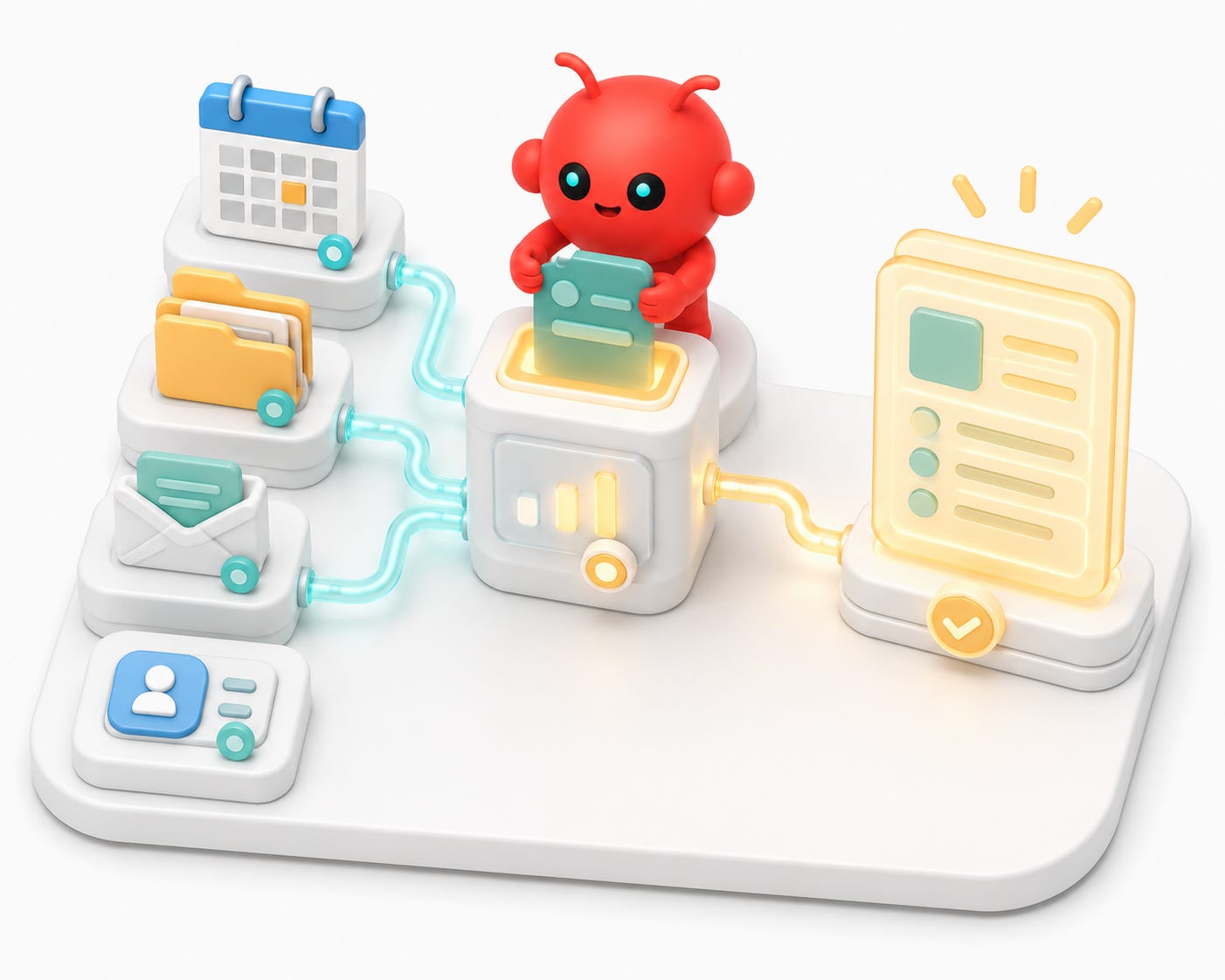
Read-only Google Workspace access changes what OpenClaw can do.
With this tool available, a persistent agent can eventually help with:
• Finding a Drive document.
• Summarizing a folder or recent file set.
• Checking calendar availability.
• Looking up contact context.
• Reading Gmail labels or searching inbox metadata.
• Connecting a Slack question to a Drive artifact.
• Turning scattered workspace context into a clean update.
That is why this feels like an ops assistant.
The agent can now answer from the same operational surface where the work is happening.
What I am not enabling yet
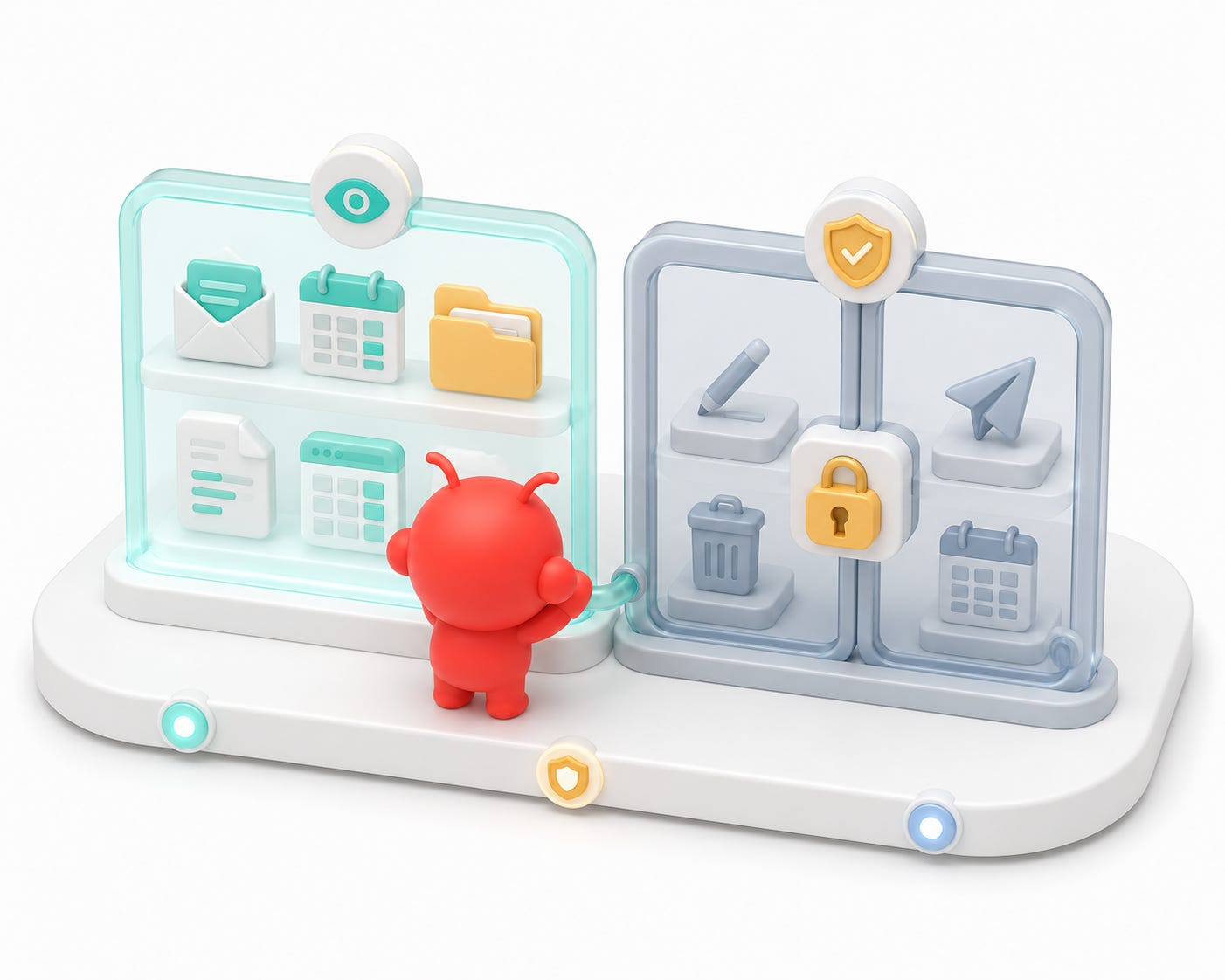
I started read-only on purpose.
I am not casually enabling:
• Sending Gmail.
• Editing Docs.
• Creating or deleting Drive files.
• Mutating Calendar events.
• Changing contacts.
• Workspace admin actions.
• Domain-wide delegation.
Those are all possible categories, but they need stronger policy.
A chat-reachable agent should not casually get write access to a Google account.
The progression should be:
1. Read-only personal account.
2. Narrow write tools for explicit workflows.
3. Strong approval gates.
4. Workspace admin or domain-wide delegation only if there is a real admin use case.
Convenience is not the same as permission.
Debugging order
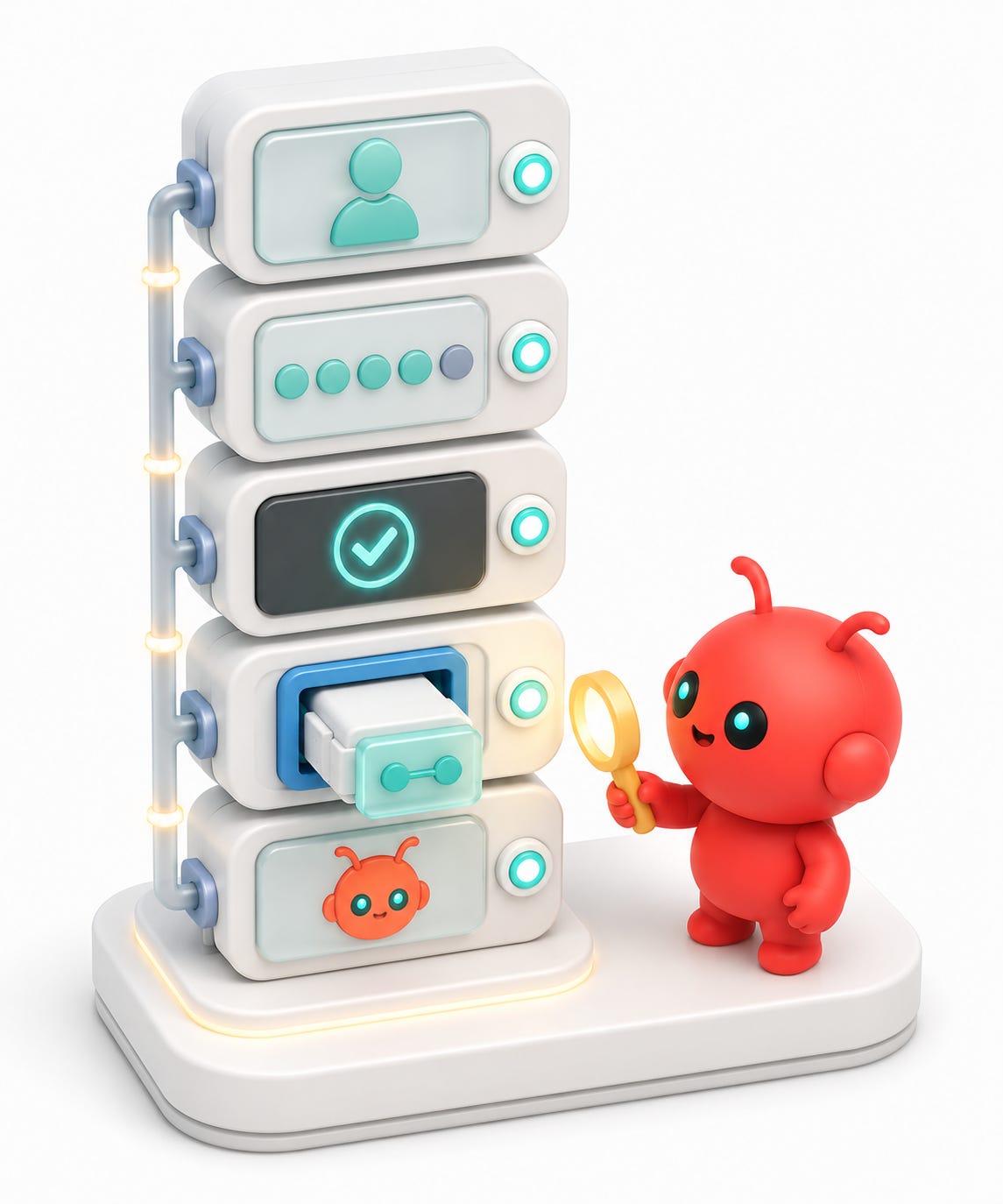
If Google Workspace access fails, I do not start by blaming the model.
The debugging order is:
1. Does the CLI binary exist?
2. Does the OAuth account appear in the CLI?
3. Can the CLI run one read-only command?
4. Can the MCP server start manually?
5. Does the agent client show the MCP server as connected?
6. Did OpenClaw reload after the config changed?
7. Is the agent using the expected account and scope set?
That order keeps the failure localized.
If `gog drive ls` fails, OpenClaw is not the issue yet.
If `gog drive ls` works but the MCP server cannot start, inspect the server command and environment.
If the MCP server starts but OpenClaw cannot see it, inspect OpenClaw's MCP registry and restart path.
Layered systems need layered debugging.
The key lesson from part six
The Google Workspace setup made OpenClaw feel more real.
Channels made the agent reachable. Model routing made it flexible. MCPs made it useful. Browserbase gave it a browser. Google Workspace gave it access to the work surface where documents, calendars, inboxes, and files actually live.
The durable lesson is the layering:
# ==================== TEXT CODE ====================
OAuth client -> tested CLI -> local MCP server -> OpenClaw config -> read-only agent tool
That order kept the setup debuggable.
If the agent cannot read Drive, I can test the CLI. If the CLI works, I can test the MCP server. If the MCP server works, I can test whether OpenClaw loaded it. Each layer has its own proof.
That is the difference between:
# ==================== TEXT CODE ====================
I gave a bot my Google account.
and:
# ==================== TEXT CODE ====================
I built a controlled Google Workspace tool layer for a persistent local agent.
In the next part, I will cover Granola: why meeting notes and transcripts become a private memory layer once OpenClaw can reach them through MCP.